How to Earn Steam Balance in War of Genesis: Idle Loot
Learn how to sell items on the Steam Community Market in War of Genesis: Idle Loot to earn Steam Wallet funds, including unlocking requirements and trading tips.
Published: War of Genesis Wiki Editorial Team
Table of Contents
Understanding the Marketplace in War of Genesis: Idle Loot
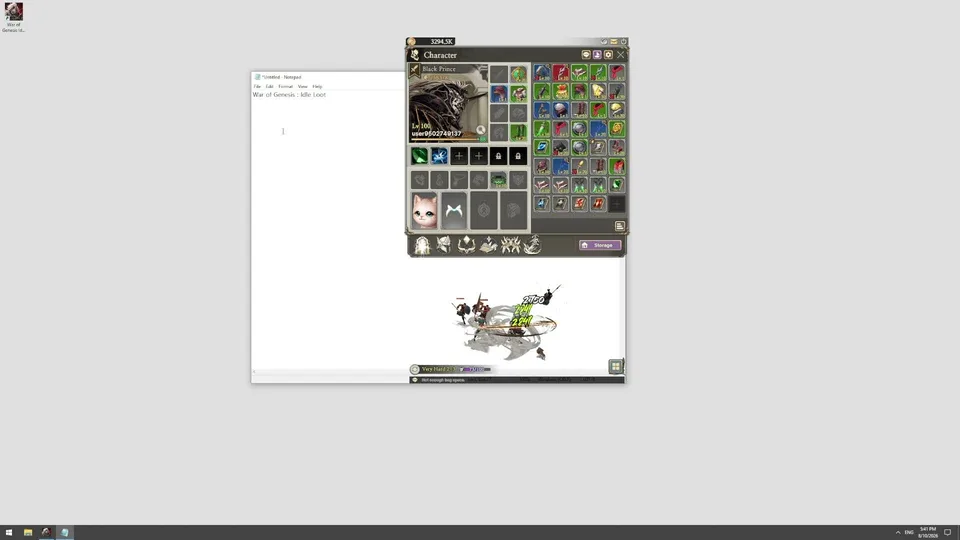
To earn Steam balance in War of Genesis: Idle Loot, players must leverage the game’s integration with the Steam Community Market. As an idle RPG where your character automatically farms gear in a transparent desktop window, the game allows you to trade specific loot with other players. When another user purchases your listed item, the corresponding funds are deposited into your Steam Wallet.
It is important to note that the game is currently in Early Access (as of September 2026). Because the economy is still evolving, developers may adjust drop rates, trading rules, and market balance. Always verify your in-game inventory status before attempting to list items.
Prerequisites for Selling Items
Before you can trade, you must ensure both your game progress and your Steam account status meet specific criteria.
Reach User Level 19: This is the mandatory threshold to unlock the Marketplace panel within the game.
Enable Steam Guard: Your account must have Steam Guard active for at least 15 days.
Account Standing: Your account must not be limited; you generally need to have spent at least $5 on the Steam store.
Purchase History: You must have made a successful purchase on Steam more than 7 days ago, but within the last year.
If you do not meet these Steam-wide requirements, the Community Market interface will remain inaccessible regardless of your in-game level. These rules are managed by Valve to prevent fraud and are not specific to War of Genesis: Idle Loot.
Step-by-Step: How to List Items for Sale
Once you have met the requirements, the process of listing items is straightforward. Follow these steps to begin earning:
Farm Gear: Continue playing the game. Gear drops automatically during combat; no manual intervention is required to collect loot.
Open the Marketplace: Navigate to the in-game Marketplace panel, which features tabs for the "Steam Community Market" and your "Steam Inventory."
Select Your Item: Choose the item you wish to sell from your inventory.
Create Listing: Click "List on Market." Note that each listing costs one in-game Diamond. You receive one free Diamond upon unlocking the Marketplace.
Set Price: Define your price and confirm the transaction through the standard Steam Community Market interface that pops up.
Receive Funds: Once a player purchases your item, the balance is automatically credited to your Steam Wallet.
Strategic Selling: What to Market vs. What to Keep
Not every item you find should be sold. Because Diamonds are a scarce currency and listing items costs Diamonds, you should be selective about what you put on the market.
Tip
Evaluate Gear Potential: Before selling, consider if the item could be more valuable if used in the Equipment Forge. Combining items of the same grade can eventually yield rare red or gold gear, which may provide more long-term character progression than the small amount of Steam Wallet funds earned from a low-tier sale.
Community reports suggest that the economy remains unstable during the Early Access phase. Prices for items on the Community Market can fluctuate significantly following game patches. Before listing, check the current market trends for similar items to ensure you are pricing your loot competitively.
Handling Transaction Issues
If you have completed a sale or a purchase and the items or funds are not appearing, follow these troubleshooting steps:
Warning
Check Sync Status: If a purchased item does not appear in your game inventory, first verify the transaction status in your Steam Inventory. If the transaction is confirmed, restart the War of Genesis: Idle Loot client to force a synchronization with Steam.
If the issue persists, check the official Steam announcements for the game. Maintenance or server updates often cause temporary delays in item delivery. Should the problem remain unresolved after 24 hours, use the official support form provided by New Normal Soft Inc. to contact their customer service team.
Frequently Asked Questions
Can I withdraw my Steam Wallet balance to a bank account?
No. Steam funds earned through the Community Market are strictly for use within the Steam ecosystem. There is no official method to convert these funds into cash or withdraw them to a bank card.
Does the game have a demo?
Based on current information, there is no separate demo version. The game is available as a full experience in Early Access.
What happens if I don't have enough Diamonds to list an item?
Listing items requires Diamonds. If you have exhausted your supply, you will be unable to list further items until you acquire more through in-game progression or other developer-provided means. Always prioritize listing items that have a high likelihood of selling to maximize the value of your Diamonds.