Table of Contents

Understanding Access to War of Genesis on PC

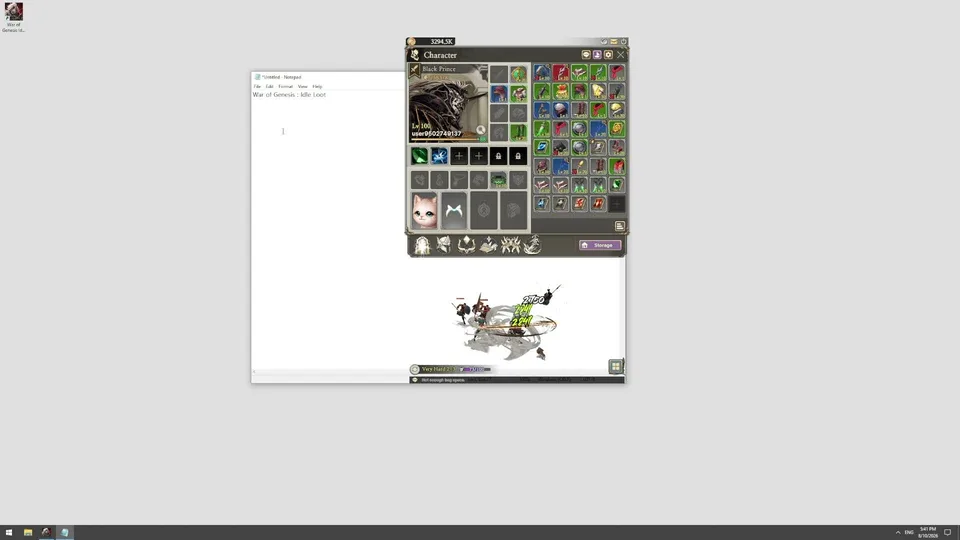
If you are looking to play War of Genesis on your computer, the most reliable and optimized method is through the official Steam release. Many players often search for "War of Genesis PC download" without realizing that multiple titles may share similar names in the broader gaming landscape. For this specific release, developed by New Normal Soft Inc., the official identity is War of Genesis: Idle Loot.

Navigating to the correct platform ensures you are downloading the intended game rather than a mobile port or an unrelated project. The official Steam page serves as the primary hub for updates, community discussions, and verified system requirements. Relying on unofficial sources or third-party emulator guides can often lead to performance issues or security risks, which is why we emphasize using the official Steam distribution channel.

Official Platform Verification

The game is officially hosted on Steam under the App ID 4891320. This is the single source of truth for the PC version. When searching for download links, ensure they redirect to the official Steam store page.

  • Verify the Developer: Confirm the developer is listed as "New Normal Soft Inc."
  • Check the App ID: Ensure the URL contains 4891320 to guarantee you are accessing the correct repository.
  • Official Links: Only use the link provided on the official Steam store page.

By verifying these details, you prevent the common mistake of installing emulators for mobile versions of similarly named games. While some community members may suggest using Android emulators to play mobile-centric versions of games with "Genesis" in the title, these do not provide the native experience or the stability offered by the official PC-native Steam release.

System Requirements and Optimization

To enjoy War of Genesis on your PC, your machine should meet the baseline hardware standards. While the game is designed for accessibility, maintaining a consistent frame rate often depends on your OS environment.

Tip

  • OS Compatibility: The game is optimized for Windows 7, 8, 10, and 11.
  • Memory: A minimum of 8GB of RAM is recommended to ensure smooth background processing and asset loading.
  • Storage: Ensure you have at least 30GB of available disk space to accommodate game files and potential future updates.

If you encounter performance hitches during your initial sessions, consider the "first-run" optimization period. Community reports suggest that keeping the application open for 30 to 60 minutes during your first three days of play can help the internal system cache assets properly, leading to a smoother experience in the long run.

Avoiding Common Pitfalls

One of the most frequent errors players face is confusing different games that share a similar branding. There are several titles in the industry that incorporate "Genesis" or "War" in their names.

  • Check the Identity: Always cross-reference the developer name. If the store page lists a different developer than New Normal Soft Inc., you are likely looking at a different game.
  • Ignore Unofficial Download Sites: Sites claiming to offer "direct downloads" for PC are often distributing bundled software or potentially harmful files. Stick to the Steam client for all installations.
  • Demo vs. Full Game: Note that this release is the full game. If you see "Demo" versions in other contexts, understand that they do not represent the finalized content, release schedule, or evaluation criteria of the main game.

FAQ: Frequently Asked Questions

Is there a mobile version of this game?

The official PC version is managed through Steam. While some titles have cross-platform elements, always verify the specific App ID to ensure you are downloading the correct version for your device.

Why does my screen show a different game when I search for the title?

Due to the popularity of the word "Genesis" in gaming, search engines often aggregate results from multiple unrelated titles. Always prioritize the official Steam link provided in this guide to filter out irrelevant results.

Do I need an emulator to play this on PC?

No. Because this version is released natively on Steam, you do not need an emulator. Using an emulator is unnecessary and may actually degrade your performance compared to the native Steam client.

Related Guides

In this category

War of Genesis Not Launching on PC: How to Fix Launch Issues

Troubleshooting guide for War of Genesis: Idle Loot launch failures, crashes, and black screens on Steam. Follow these steps to verify files and update drivers.

Continue reading
In this category

War of Genesis 18 New Skins: Roster Fact Check and Setup

Investigating the 18 new skins rumor in War of Genesis: learn how character identity cosmetics work, separate game versions, and fix Steam crashes.

Continue reading
In this category

Troubleshooting War of Genesis: Idle Loot Crashing and Performance Issues on Steam

Experiencing crashes or lag in War of Genesis: Idle Loot? Follow our guide to optimize your Windows settings, update drivers, and resolve stability issues on Steam.

Continue reading
In this category

War of Genesis: Idle Loot Guide – Troubleshooting and Gameplay Overview

Discover essential tips for War of Genesis: Idle Loot on Steam, including performance troubleshooting, idle mechanics, and maximizing your loot efficiency.

Continue reading

References